


A Safer Navigation Experience in Waze
This self-initiated UX case study explores how Waze could better serve long-haul and large vehicle drivers by introducing a dedicated Truck Mode. Inspired by user reviews and market gaps, I designed a feature flow that allows truck drivers to input vehicle-specific data and receive safer, truck-appropriate routing — while also improving visibility into road hazards like low bridges and weight limits.
Self-Initiated UX Case Study — Mobile App Feature Design
UX/UI Designer - Research, Wireframing, Visual Design
Figma, Illustrator, App Store
Waze is a popular navigation app designed for car drivers — but it falls short when used by truck and lorry drivers. These users often get routed through narrow streets, under low-clearance bridges, or onto weight-restricted roads that are unsafe for large vehicles. Without the ability to input their vehicle dimensions, truck drivers have to rely on memory, paper maps, or other clunky apps — leading to frustration, wasted time, and potential danger.
A truck driver suggested on the App Store:
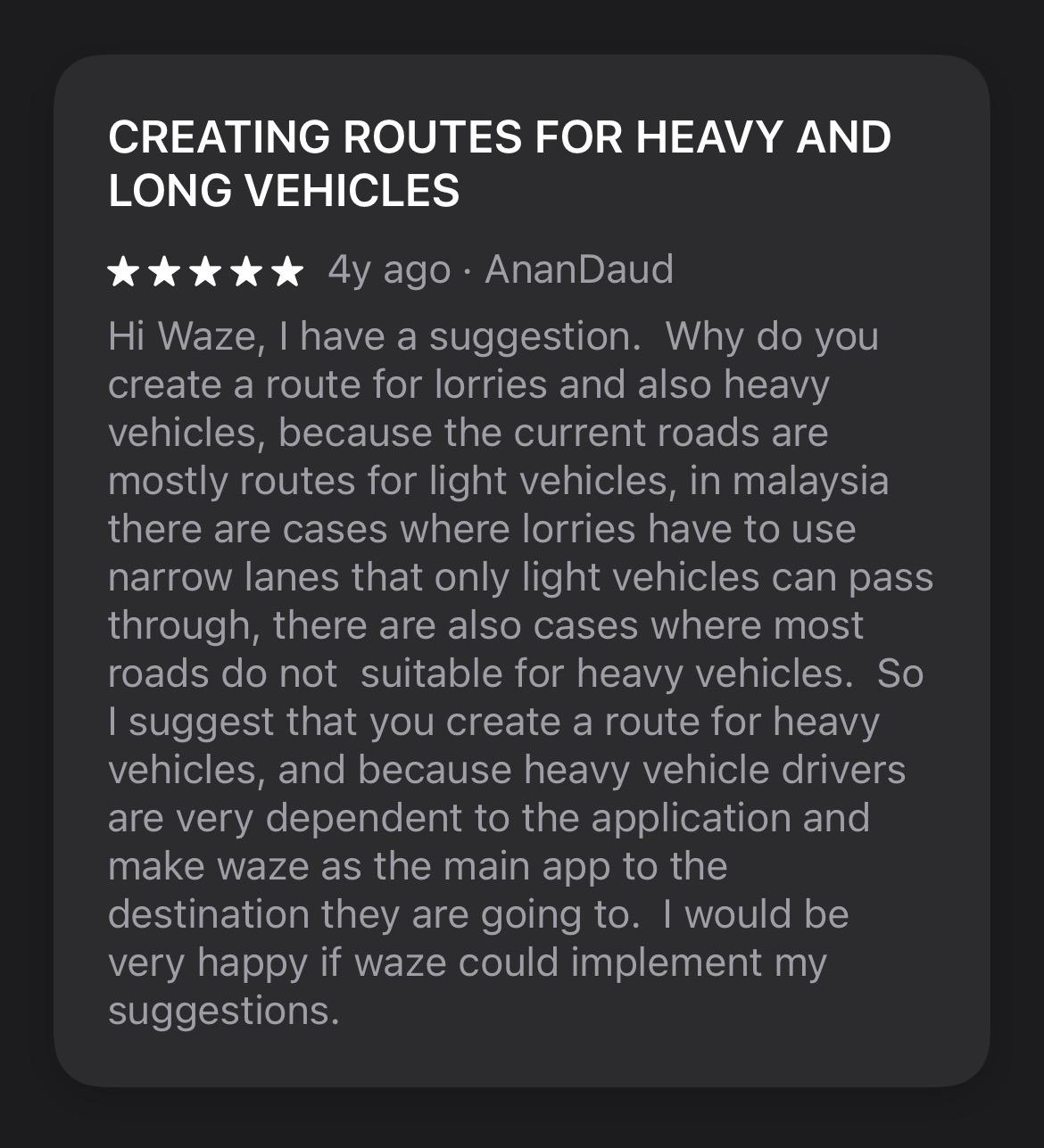
"I suggest that you create a route for heavy vehicles, and because heavy vehicles drivers are very dependent to the application and make Waze as the main app to the destination they are going to"

This comment reinforces the need for a feature like Truck Mode and helped guide the direction of this project.
Design a new Truck Mode in Waze that allows truck drivers to:
1. Enter vehicle details (height, weight, length, cargo)
2. Get safe, truck-friendly routing
3. Find relevant POIs (fuel, rest stops)
4. Stay informed through simplified voice + map guidance
Name: Johan
Age: 41
Job: Long-haul truck driver
Experience: 12+ years driving across Malaysia
Goals: Deliver goods safely and on time, avoid dangerous or slow routes
Pain Points: Unreliable routing for trucks, no info on rest stops or road limits
Tech Comfort: Uses mobile apps daily: Waze, WhatsApp, Spotify
Quote: "I just want to know the road ahead won’t get me stuck — or fined."
To design an effective Truck Mode for Waze, I looked at navigation tools built specifically for truck drivers. These helped identify key features that Waze currently lacks — and inspired ideas for a better experience.
App
Truck Routing
Vehicle Profile
Truck POIs
Hazard Alerts
Sygic Truck GPS
✅ Yes
✅ Yes
✅ Truck stops
✅ Truck alerts
Trucker Path
✅ Yes
✅ Limited
✅ Extensive
⚠️ Community-rated
Google Maps
❌ No
❌ None
❌ Car-focused
⚠️ General only
Waze (Current)
❌ No
❌ None
❌ Car-focused
⚠️ Community-based
Scroll right →
Truck-focused navigation apps exist, but they’re separate tools. Waze has the opportunity to bridge this gap inside a platform truckers already trust.
1. Custom Vehicle Profiles are essential for safe navigation
2. Truck-specific POIs (like truck stops and fuel stations) are high-value
3. Waze already has a strong foundation in real-time data, which could power a truck-specific experience
This research gave me a clearer sense of what truck drivers actually need from a navigation app — and revealed a big opportunity to build these features with better UX than existing tools. Next, I translated these findings into wireframes to explore how "Truck Mode" could work within Waze’s existing flow.

An option to choose Truck as the vehicle type to turn on Truck Mode in the app. When enabled, the app will route truck-friendly paths based on the vehicle profile.
Key Elements:
1. Toggle button (On/Off)
2. Brief text below the toggle explaining how Truck Mode works
Optional: A confirmation screen when Truck Mode is activated with a quick summary of the vehicle profile

This is where truck drivers can input their vehicle details, such as height, weight, cargo type, etc.
Key Elements:
1. Text fields for vehicle dimensions (height, width, weight, etc.)
2. Dropdown for cargo type (standard, hazardous, oversized)
3. Button to save and update profile
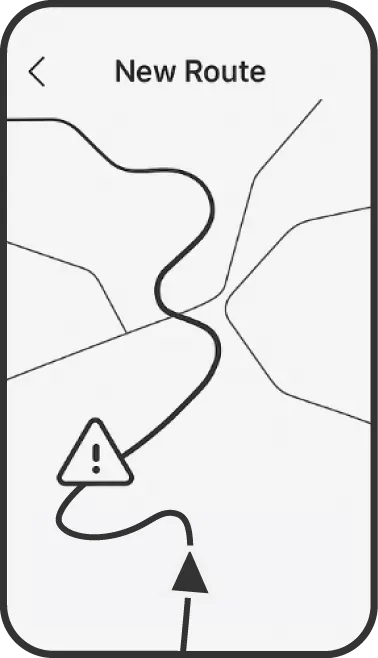
When Truck Mode is enabled, users should see a map with route options that consider truck dimensions and restrictions.
Key Elements:
1. A clear map with a highlighted truck-friendly route
2. Simple icons showing truck-specific hazards on surrounding roads

This screen will show points of interest such as rest stops, truck-friendly fuel stations, weigh stations, and parking areas.
Key Elements:
1. Map markers for relevant POIs
2. Filters to show only specific POIs (fuel, rest areas, parking)
3. Simple icons to visually differentiate truck-specific POIs from regular ones
To bring the concept to life, I created a high-fidelity prototype reflecting Waze’s visual language while introducing the new Truck Mode elements. The design maintains the familiar Waze interface, with subtle UI adjustments to accommodate truck-specific features.
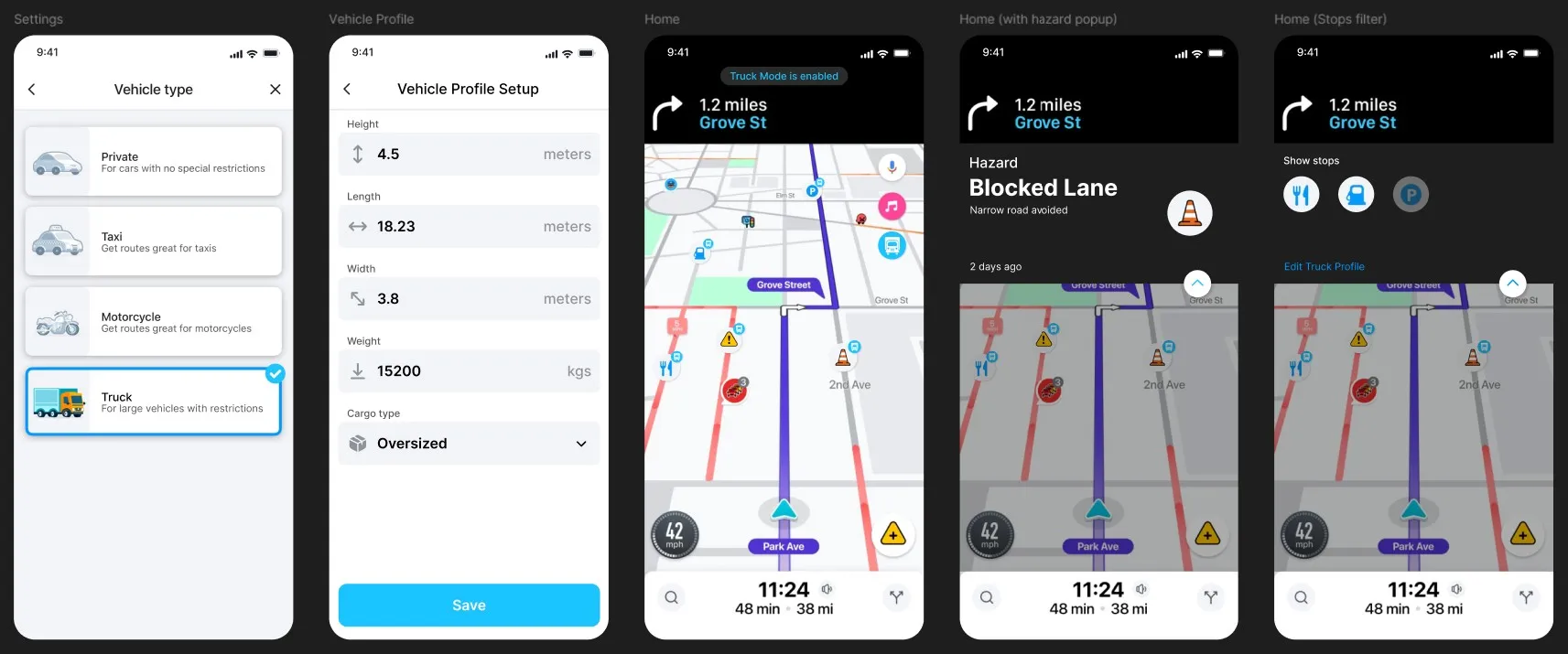
The goal was to deliver a seamless experience for commercial drivers without disrupting the flow for regular users.
See PrototypeDesigning for edge cases (like large vehicles) reveals gaps in mainstream products that are easy to overlook. Even small UI choices — like clearly labeled warnings or simple input fields — can drastically increase user trust in a system. It's important to balance automation (smart routing) with user control (toggle Truck Mode or explore nearby POIs).
User validation: I'd love to conduct usability tests or interviews with real truck drivers to validate assumptions and refine the flow.
Scalability: Explore how Waze could integrate these features without cluttering the UI for non-truck users.
